
Automation
WhatsApp support automation with flows, triggers and sequences
InvestCRM’s support automation replies on WhatsApp when something happens: a keyword, a click on an ad, a new tag on the contact. You build the flow in blocks, with no code, and decide where the conversation goes to a person. It runs on the number connected through the official API and starts on the Start plan.

Where it stalls
Where manual WhatsApp support stalls
The message arrives at 10 p.m. and gets read the next day. The question about price comes up all week long. The lead from the ad writes "I want to know more" and waits for someone to be free. Automating support means answering that right away, the same way every time, and leaving the team only what needs a person.
On the official API, two rules shape any flow. A free-form message only goes out inside the 24-hour window opened by the person’s last message; outside it, only an approved template. And WhatsApp’s policy accepts automation inside the window as long as there is a quick, clear way to reach a person. Source: WhatsApp Business policy
Triggers
What makes an automation start
The Start automation when… window splits triggers into two categories, with 9 options in all.
WhatsApp: what the person does
- The contact sends a message: you type the words that start the flow, separated by commas, and pick whether the message contains, is exactly or starts with the word. With Ignore accents and capitals, "Orçamento", "orcamento" and "ORÇAMENTO" count as the same.
- The contact comes from an ad and writes: it starts when the person clicks a click-to-WhatsApp ad and sends the first message. The click alone triggers nothing, because Meta does not report clicks. The ad ID is optional, to tell one ad from the others.
- The contact arrives through your link or QR code: you set the phrase the link carries pre-typed and InvestCRM builds the wa.me link to copy. Note: today this trigger only fires when the message arrives with the click origin that Meta sends, and a plain wa.me link or QR code does not send that origin. For the link and QR code on your website, use The contact sends a message with the same phrase and the "is exactly" option.
Contact events: what changes in the record
- New contact created, Tag assigned to the contact and The tag was removed from the contact.
- A contact field’s value changed, with the option to start only when the new value is a specific one. In practice, today it fires when someone changes the name on the contact card: the card does not save Fields 1 to 5, and spreadsheet imports, the API and flows do not fire this trigger. To react to new data, use a tag and Tag assigned to the contact.
- The contact is subscribed to a sequence and The contact is unsubscribed from a sequence.
Two more starting points live under Basic automations: the Default reply, for messages that matched no keyword, and Conversation starters, the shortcuts WhatsApp shows people opening the chat for the first time (up to 4, no emoji, per Meta’s rule), each able to open an automation. Entering or leaving a segment does not start automations yet: for segments, use the Segment condition in a broadcast or a sequence.
Blocks
The flow blocks, one by one
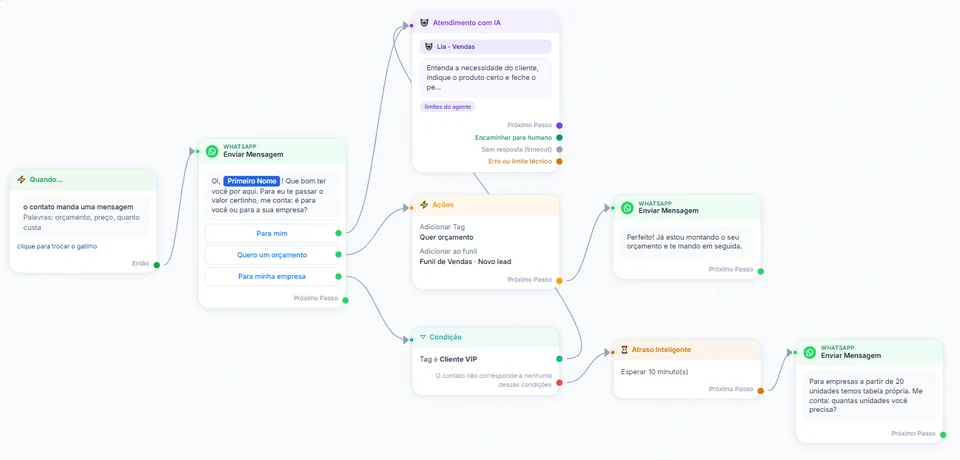
On the board, each step is a block wired to the next one. Each output takes a single wire: connecting it again replaces the old one. The Choose Next Step button offers:
- Send Message: stacks Text, Image, Delay, data collection, File, Audio and Video, with reply buttons attached to the text or the media. Data collection saves the person’s answer (email, phone and more) to a contact field.
- Approved template: speaks first when the 24-hour window is closed.
- Actions: Add Tag, Remove Tag, Set user field, Clear custom field, Delete contact, Set WhatsApp opt-out, Subscribe to sequence, Remove from sequence, Add to pipeline and hand off to human support.
- Condition: looks at a tag, a field or the last reply (contains or does not contain) and asks whether the contact meets all the conditions or any of them; it has one path for a match and another for no match.
- Smart Delay: waits minutes, hours or days before the next step.
- Randomizer: draws each contact into one of 2, 3 or 4 paths.
- AI assistant: the agent chats from that point on, with Next Step, hand-off to a person, No reply (timeout) and technical error or limit outputs.
- Start automation: moves the contact to another automation and ends this one.
- Opt-out: marks the contact as unsubscribed and ends the flow; they stop receiving anything.
Setups
Three setups for everyday work
Ad leads answered right away
- Trigger The contact comes from an ad and writes, with the ad ID blank so it applies to every ad.
- A Send Message block with one question and two or three reply buttons.
- On each button, Actions: Add Tag with the interest and Add to pipeline at the first stage.
- Then an AI assistant block or the hand-off to human support, from the Business plan up.
The lead gets an answer right away and lands in the pipeline with the right label. On the Business and Enterprise plans, the pipeline stage can also become a conversion for your ads: see Meta and Google conversions.
A website form that turns into a conversation
- Your system creates the contact through the InvestCRM API with a tag such as "lead-site" (Business plan).
- Trigger Tag assigned to the contact with that tag.
- First block: Approved template, because the person has not written on WhatsApp yet (see the confirmacao_contato_site template below).
- Whoever replies moves on to free-form messages, the AI or the team.
A three-message welcome that does not nag
- Create a sequence with three messages: Immediately, After 2 days and After 5 days. Each interval counts from the previous message.
- Trigger New contact created and, in the flow, Actions → Subscribe to sequence.
- The first message confirms what the person asked for; the offer waits for the later steps, with the opt-out.
A/B test
A/B tests with the Randomizer: how to measure them for real
The Randomizer draws each contact into one of 2, 3 or 4 paths. Where you put it changes what you can measure:
- In a broadcast, each flow block shows Sent, Delivered and Clicked, and each button has its click rate: you can compare paths right on the board (how broadcasts work).
- In an automation, the list shows how many Runs each automation had, but the CTR column is still empty (—): button clicks are not measured in automations.
To compare paths in an automation, put a different Add Tag at the start of each path (say, teste-a and teste-b) and another tag at the point that counts as success, such as a quote request. Then the tag filter in the pipeline or on the contacts screen shows how many got there through each path.
Sequences
Sequences: a series of templates spaced out over time
A sequence is a series of approved templates sent at intervals. Since each step is a template, it works even outside the 24-hour window.
- Up to 50 messages per sequence. Each goes out Immediately or After a number of hours or days (up to 365), counted from the previous message.
- A message can be switched off without deleting it: the sequence jumps to the next one.
- You subscribe contacts by segment, list or tags; opted-out contacts are skipped and people already active are not subscribed twice.
- Automations also subscribe and remove (Subscribe to sequence, Remove from sequence), and the API subscribes by phone number.
- Anyone who lands on the blocklist midway leaves the sequence before the next message.
- The panel shows Subscribers, In progress, Completed and Stopped (opt-out), and each message shows how many contacts already got it. To edit the steps of an active sequence, pause it first.
Default reply
Default reply and the after-hours message
The Default reply is last in line: it only answers when the message matched no keyword, and it never jumps ahead of a specific automation or a send in progress. You choose how often it may answer the same person:
- Every time they write.
- Only after 24 hours, which is the default.
- Only after 48 hours, 7 days or 14 days.
- Never (first contact only).
The Reply only outside business hours (away message) option turns the default reply into an away notice: you set the business hours, the time zone (9 options in Brazil, from Brasília to Fernando de Noronha) and the weekdays. During business hours the team answers; outside them, the bot says you will get back later.
Set up with AI adds an AI assistant block to the default reply bot; for that, the account needs an OpenAI or Anthropic key on file. How the AI agent answers.
A person in the loop
When the automation stops and calls someone
There are three ways to get the automation out of a customer’s way:
- Hand off to human support, the flow action (from the Business plan up): it pauses automation in that chat, puts the request in the team queue and notifies whoever will answer. The notice to the customer has one text for business hours and another for after hours, either the account’s or one just for that step.
- ⏸ Pause automations, in the Inbox chat: automations, sequences and reminders stop for that contact until someone clicks ▶ Resume automations, and the flow picks up from the block where it stopped. Broadcasts, which are sends by the team, still go out.
- Pause the AI when an agent replies (including from the phone), in the human support settings: it is off by default; when on, once someone on the team replies, even from the phone app, nothing automated talks to that customer until someone clicks Return to AI in the conversation or the Time for the AI to come back on its own runs out, if you set one (0 = never; at most 24 hours, counted from the agent’s last message).
When it is the team that owes a reply, human support has a deadline and reminders: the time to reply (15 minutes by default) and in-app reminders, counted only during business hours.
Follow-up
Follow-up: three ways to keep the conversation alive
- In the flow: a Smart Delay followed by a Condition (did the person reply? did they get the tag?) decides whether the reminder goes out. After 24 hours without a reply, the reminder has to be an approved template.
- In a sequence: for reminders on fixed dates that must go out even outside the window.
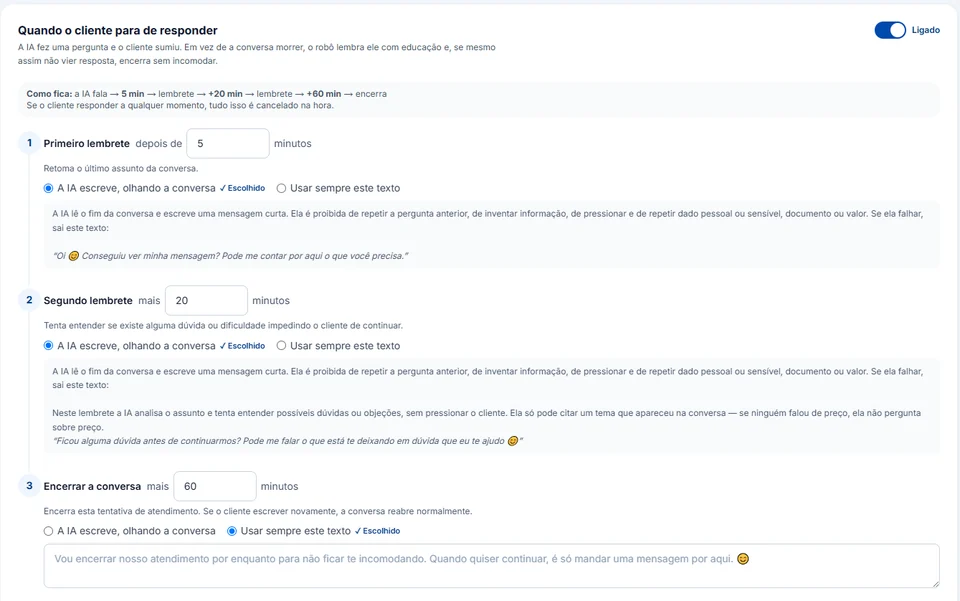
- In the AI: when the agent asks something and the customer goes quiet, up to 2 reminders (written by the AI from the conversation or with fixed text) and a closing message, each with its own minutes. If the customer replies at any point, all of it is canceled.
The AI follow-up comes with automations, from the Start plan, and can be switched off at any time.
Templates
The templates automations usually need
Inside the 24-hour window the flow answers with free-form messages. An approved template comes in when the automation speaks first: tag or new-contact triggers, sequence steps, reaching back out. Four examples, with the likely category:
Website contact request, continued on WhatsApp
Name at Meta: confirmacao_contato_site · Category: Utility
Why this category: The conversation started on another channel and the person asked to continue on WhatsApp. Meta lists this case as utility, as long as the text carries no promotion.
Confirmation for people who asked for notices
Name at Meta: confirmacao_avisos · Category: Utility
Why this category: Confirming on WhatsApp a permission given on another channel is opt-in management, one of Meta’s utility examples. The text only confirms and already explains how to leave.
Second step of the welcome sequence
Name at Meta: boas_vindas_dicas · Category: Marketing
Why this category: Content meant to build the relationship and lead to a purchase is marketing even with no price in it. That is why it carries the opt-out and stays out of the sequence’s first step.
Reaching back to people who stopped replying
Name at Meta: retomar_conversa · Category: Marketing
Why this category: With no order or account in progress, reaching back to someone who chatted is an attempt to win back a sale: Meta treats it as marketing, even if the person wrote before.
The rules for each category are in template categorization, in Meta’s documentation, and there are more texts in Message templates.
Cost
What a month of automation costs at Meta
Example of a month in which automations answer people who write in, confirm contact requests from the website and send the marketing steps of a sequence. In automations, most of the volume is usually service: every free-form reply inside the window counts as a service message since Oct 1, 2026.
| What for | Billed × price per message | Cost for the month |
|---|---|---|
| Marketing steps in sequences · Marketing | 300 × R$ 0.3217 | R$ 96.51 |
| Confirmations of website contact requests · Utility | 600 × R$ 0.0350 | R$ 21.00 |
| Automatic replies inside the 24-hour window · Service (support) | 3,000 × R$ 0.0350 (of 4,000 this month) | R$ 105.00 |
| Total | R$ 222.51 |
Estimated monthly total, paid straight to Meta: R$ 222.51. The first 1,000 service messages of each number, every month, are free. If the utility templates in this bill were classified as marketing, the same month would go from R$ 222.51 to R$ 394.53. The volumes are an example to show the math, not data from a customer.
Meta's BRL rate card for Brazilian numbers, effective Oct 1, 2026, checked on Oct 9, 2026. See the rate card at Meta · Run your own numbers in the calculator
Rules
Rules that apply to every automation
Automation yes; no way to reach a person, no
WhatsApp’s policy accepts automation inside the 24-hour window as long as there is a prompt, clear and direct escalation path: in-chat transfer to a person, phone, email, web support, a store visit or a support form. Source: WhatsApp Business policy
In InvestCRM: the hand-off to human support action (Business) and the AI block’s hand-off output are the in-chat path. On Start, which has no human queue, leave a phone number, an email or another support channel in the flow.
Free-form messages only with the window open
Outside the 24-hour window, only approved templates. Source: WhatsApp Business policy
In InvestCRM: the engine checks the window before every free-form message and stops the flow when it has closed; the Approved template block and sequences are how you speak first.
Opt-out applies to everything
A business must honor requests to stop, and Brazil’s data protection law (LGPD) says consent can be withdrawn at any time, free of charge and easily (art. 8, § 5). Source: WhatsApp Business policy · Source: Law 13,709/2018
In InvestCRM: a typed SAIR, the Opt-out block and the Set WhatsApp opt-out action send the contact to the blocklist; the sequence stops before the next message and broadcasts leave the person out.
Collect data with care
The policy forbids asking for full card numbers, bank account numbers or ID document numbers. Source: WhatsApp Business policy
In InvestCRM: data collection asks whatever you set up and the system does not block the question. Review what each block asks for and keep only what support actually uses.
Going live
Test, publish and organize
- Test checks the flow against the same rules as Publish and lists what still needs fixing, block by block.
- Changed a live automation? People already in the flow stay on the published version; Republish applies to the next ones.
- Pause takes the automation offline without deleting anything.
- Folders, Archive and Trash (with Restore) keep the list tidy, and the Runs column shows how many times each automation ran.
- Send to another account copies the flow’s skeleton with its tags (missing ones are created there) and the funnel at the first stage: there you set up the fields, AI agent and anything else left blank.
- On the Grátis (free) plan, the automation stays a draft and Test works; publishing starts on Start.
Plans
Automations on each plan
Automations, sequences, the default reply and follow-up start on the Start plan, with 2 automations on at once. Business runs 10 and adds human support with a queue and the API that the website form setup relies on; Enterprise runs 50. On the team, building automations belongs to the Editor, the Administrator and the Owner.
| Feature | Grátis | Start | Business | Enterprise |
|---|---|---|---|---|
| Price per month | R$ 0 | R$ 147 | R$ 297 | R$ 597 |
| Active automations | Not included | 2 | 10 | 50 |
| AI agents | 1, test chat only | 1 | 5 | Unlimited |
| Human handoff with queues and departments | Not included | Not included | Included | Included |
| API and webhooks | Not included | Not included | Included | Included |
| Custom fields | 5 | 30 | Unlimited | Unlimited |
| Contacts included | 100 | 1,000 | 5,000 | Unlimited |
Keep reading
To build your first automation
- Official API broadcasts, step by step
- AI customer service on WhatsApp
- Integrations and API
- CRM and sales pipeline
- Meta and Google conversions
- Pricing and plans
- The 24-hour window, in the API guide
- Ready-made message templates
- WhatsApp link generator
- How much the official WhatsApp API costs
- Meta cost calculator
- InvestCRM home page
Start free on InvestCRM
The Free plan has no time limit and needs no card. Connect your number through the Meta window and try the system.