
Skip to content

For businesses that book appointments on WhatsApp

WhatsApp appointment booking: what the AI books on its own and what stays with your team

Booking an appointment over WhatsApp has two parts: finding a free slot and reminding the person about it. The first is only automatic when the AI agent can read your calendar; the second depends on approved templates, because the reminder nearly always goes out after the chat has closed. This page shows InvestCRM's setups with a calendar linked and without one, and what each of them does not do.

The problem

Where WhatsApp booking usually goes wrong

A bot that answers "I can book you Thursday at 3 p.m." without checking the calendar creates two problems: double bookings, and customers who show up on a day nobody expects them. On the other side, a team that books everything by hand misses people who write after hours and forgets to confirm the day before.

  • "Friday" is not a date: the customer writes "could it be Friday?" without saying which one. Whoever books has to turn that into a day and month and repeat it back for confirmation.
  • The calendar lives somewhere else: the clinic system, a spreadsheet, a phone calendar. If WhatsApp cannot talk to it, someone copies the slot from one place to the other.
  • The reminder goes out the day before: the chat where the slot was booked closed long ago, so the reminder can only be a Meta-approved template.
  • Too much data in the chat: asking for a full national ID number to book a slot is usually overkill, and WhatsApp's policy asks businesses not to request full identity document numbers.

The setups below separate what the system does on its own from what remains with your team. Scheduling a message (setting a broadcast for a date and time) is a different thing and is covered in the questions at the end of the page.

Setups in InvestCRM

Four setups, from the chat to the reminder

Names in bold are the labels on screen (in Portuguese). For dental clinics using Odonto Invest, the ready-made setup, with the AI booking straight into the clinic's schedule, is in WhatsApp for dental clinics.

From the Start plan

1. The AI checks your calendar before promising a slot

Starts when

Your booking system has a public internet address that answers queries (an API).

How to set it up

  1. In the agent, under Comportamento → Habilidades (behavior, skills), click Adicionar habilidade and choose Consultar sistema externo (API) (query an external system). Fill in the name ("Check calendar"), the URL da API, the Método (method) and, if your system asks for it, the authentication header, which is stored encrypted. Internal network addresses are not accepted.
  2. Under Definição de uso (usage definition), say when to query ("when the customer asks for a slot, check before offering one"). Under Dados necessários para a consulta (data needed for the query), keep it minimal: name and preferred date, not the national ID.
  3. Ask your system's developer to handle the format InvestCRM sends: with GET, the consulta and telefone parameters; with POST, a JSON with the query plus the contact's name and phone. InvestCRM waits up to 15 seconds for the answer.
  4. Also switch on the Calendário skill, so the agent reads "tomorrow" and "Friday" against the current date and time and confirms the day and month with the customer. The days and hours you work go under Outras regras ou restrições (other rules or restrictions), which the agent reads on every reply. Whatever you type in the Calendário skill's description never reaches the agent: opening days written only there are ignored.

What happens next

The agent only offers what the calendar returned and never makes up a result: if the query fails, it says it could not check and offers to hand over to a person. Whether it actually books or only checks depends on what your system does with the request. Each query is logged in the chat as an executed skill.
From the Start plan

2. No calendar linked: the AI notes the request and your team confirms

Starts when

The customer asks for a slot and your calendar has no API (a spreadsheet, a notebook, a phone calendar).

How to set it up

  1. In the agent, add the Transferir para setor/pessoa (transfer to department or person) skill named "Agendamento", with the definition "when the customer wants to book, reschedule or cancel" and the Tag aplicada ao contato (tag applied to the contact) "Pedido de horário". In the rules, ask the AI to collect the preferred day and time of day before transferring and never to confirm a slot.
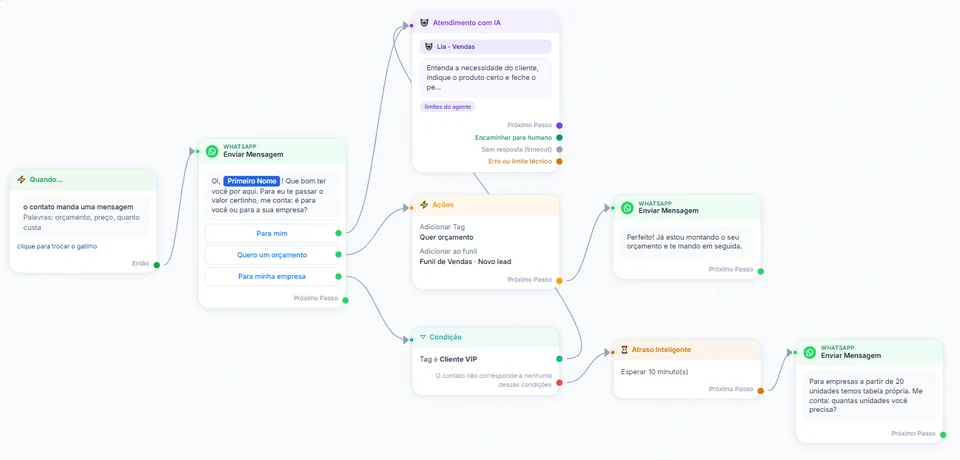
  2. In the flow, the transfer leaves the Atendimento com IA block through the Encaminhar para humano (hand off to a person) output (if that output is not connected, through Próximo Passo). Connect it to an Ações block with Adicionar ao funil, on a stage such as "Slot to confirm", and a short message: "Noted. Someone from our team will confirm the time here."
  3. Your team opens the deal in the Funil, confirms the slot in the chat (the 24-hour window is open, since the customer just wrote) and creates a dated task with Agendar tarefa (schedule task). The task shows up in Tasks and on the Calendar, which lays out the month with each day's tasks.
  4. On Business, add the Encaminhar para atendimento humano action: the chat joins your team's queue, with a department and wait time. Once the slot is confirmed, whoever handled it clicks Concluir atendimento (close the handover), so automations can talk to that customer again.

What happens next

In this setup the AI books nothing and does not try to: it gathers the request and passes it on. InvestCRM does not create a task or event from the chat by itself either; the person who confirms creates it. The gain is that requests made after hours are not lost and reach your team already tagged and in the pipeline.

InvestCRM screen: a sample flow builder where the Atendimento com IA block shows its Próximo Passo, Encaminhar para humano, Sem resposta (timeout) and Erro ou limite técnico outputs, next to an Ações block that applies the Quer orçamento tag and puts the contact in the Funil de Vendas at the Novo lead stage
Real InvestCRM screen, with sample data.

From the Start plan

3. A confirmation the moment your team logs the slot

Starts when

Your team updates the contact's slot from a spreadsheet and applies the "Horário marcado" tag on the Contacts screen (trigger Tag atribuída ao contato, tag added to contact).

How to set it up

  1. Under Settings → Campos, rename Field 1 to "Horário marcado" (booked slot). The five original fields can be renamed, not deleted.
  2. Submit the horario_confirmado template for approval, in the Utility category (the text is further down).
  3. In Automations, create a flow with the Tag atribuída ao contato trigger and the "Horário marcado" tag. Connect a Modelo aprovado (approved template) block with {{1}} = Primeiro Nome and {{2}} = Campo 1, then an Ações block with Remover Tag "Horário marcado", so the tag works again for the next slot.
  4. The contact card has nowhere to type Field 1: it only saves the name. The slot comes in through a spreadsheet import (CSV or XLSX, with the phone and the slot in the Field 1 column), which updates the existing contact without firing any automation; then apply the tag on the Contacts screen, to one contact or several at once. The O valor no campo do contato foi alterado trigger does not help here, because no screen saves Field 1.
  5. If the chat is in the queue or with an agent, click Concluir atendimento before applying the tag. In that state no automation talks to the customer: the confirmation stays on hold until they write again after the handover is closed, and applying the tag a second time does not resend it. A chat also lands in that state, on any plan, when Pausar a IA quando um atendente responder (inclusive pelo celular) (pause the AI when an agent replies) is on and someone on your team replies.

What happens next

With the handover closed, the customer gets a confirmation with the slot spelled out right after your team applies the tag, without anyone typing the message. Because it is an approved template, the confirmation goes out even if the chat has already closed.

From the Business plan

4. A day-before reminder triggered by your own system

Starts when

The day before each appointment, your booking system calls the InvestCRM API.

How to set it up

  1. Create a key under Integrações (API). The v1 API accepts 60 calls per minute per key.
  2. The day before, your system sends the contact with the slot in Field 1 and the tag "Lembrar horário" (remind slot) via POST /v1/contacts, with var1 and tags. A tag applied through the API fires the Tag atribuída ao contato trigger.
  3. That trigger's flow has a Modelo aprovado block with lembrete_horario ({{1}} = Primeiro Nome, {{2}} = Campo 1) followed by an Ações block with Remover Tag "Lembrar horário", so the same tag works for the next appointment.
  4. Without a system to call the API, your front desk can do the same by hand: import a spreadsheet of tomorrow's slots (with the slot in the Field 1 column), then on the Contacts screen select those customers and apply the tag in one go, which also fires the trigger, from Start up.

What happens next

Each reminder goes out with that customer's own time. InvestCRM does not read the appointment date to schedule the reminder by itself: the Atraso Inteligente (smart delay) block waits minutes, hours or days, or until one exact date and time shared by everyone, which is why the day before is marked with the tag. A customer whose chat is still in the queue or with an agent does not get the reminder until that handover is closed: it waits for that customer's next message.

Message templates

Booking templates, with the category of each

Confirming, reminding about and cancelling a slot the customer asked for are utility, as long as there is no offer attached. Telling someone who did not ask about an opening is marketing. Brackets are for your business name and address; {{2}} is the slot written in Field 1.

  • Slot confirmed

    Utility

    Template name: horario_confirmado

    Hi {{1}}, your appointment is booked for {{2}} at [business]. If you need to change it, just reply to this message.

    Why this category

    It confirms something the customer asked for and offers nothing: it follows up on their own action, with no promotional tone, which Meta classifies as utility.

  • Day-before reminder

    Utility

    Template name: lembrete_horario

    Hi {{1}}, a reminder of your appointment tomorrow: {{2}}, at [address]. Will you be able to make it?

    • Yes, I will
    • I need to reschedule

    Why this category

    Reminding someone of a booking they made is specific to them and sells nothing. If the reminder adds "while you are here, try our new service", it becomes mixed content and moves to marketing.

  • Cancellation recorded

    Utility

    Template name: horario_cancelado

    Hi {{1}}, as you asked, your {{2}} appointment has been cancelled. Whenever you want to book another, reply here.

    Why this category

    It records the outcome of the customer's own request, with no sales pitch. If the text starts suggesting another service or special terms, it stops being a plain follow-up.

  • Opening for the waiting list

    Marketing

    Template name: vaga_disponivel

    Hi {{1}}! A slot opened up on [day] at [business]. If you want it, tap the button below. To stop getting opening alerts, reply STOP.

    • I want this slot

    Why this category

    Offering a slot to someone who did not ask for that slot promotes the service: marketing, at the marketing price. That is why it only goes to people who asked to join the waiting list, and it explains how to opt out.

What it costs

A month of confirmations and reminders, on Meta's rate card

Example of a calendar with one number, counting only templates sent after the 24-hour window has closed: day-before reminders, plus confirmations and cancellations sent after that point, as utility, and a few waiting-list openings as marketing. The confirmation your team sends right after the customer writes goes out with the window open and is left out of this bill; billing inside the window follows Meta's pricing page, linked below the table. InvestCRM does not charge per message.

Sample bill using Meta's official rate card, Brazilian number
What forCategoryMessages a monthBilledPrice per messageCost for the month
Day-before reminders, plus confirmations and cancellations after the windowUtility700700R$ 0.0350R$ 24.50
Openings sent to the waiting listMarketing120120R$ 0.3217R$ 38.60
Estimated monthly total, paid straight to MetaR$ 63.10

If the utility templates in this bill were classified as marketing, the same month would go from R$ 63.10 to R$ 263.79.

In booking, almost all the volume is utility. What drives the bill up is utility that turns into marketing, so it pays to write the reminder with no offer at all. For your own calendar, run the numbers in the calculator.

The volumes are an example to show the math, not data from a customer.

Meta's BRL rate card for Brazilian numbers, effective Oct 1, 2026, checked on Oct 9, 2026. See the rate card at Meta

Run your own numbers in the calculator →

Rules

What Meta and Brazil's LGPD require for booking

Rules that apply to any calendar run over WhatsApp, with a link to the official text. Regulated professions, such as health care and law, have their own advertising rules: see the page for your industry.

  • A reminder is utility; an offered opening is marketing

    Under Meta's category rules, utility is a message with no promotional intent, tied to the person's action or request. Mixed content, such as a notice with a promotion, is marketing. When Meta moves a utility template to marketing, it gives 1 day's notice; the template stays approved and is billed as marketing from then on.

    In InvestCRM

    The Meus Modelos table shows "a Meta mudou de Utility" next to the new category. From that point, every delivered reminder costs the marketing price.

    Source: Meta template categories

  • Outside the 24 hours, templates only

    The WhatsApp Business Messaging Policy says that outside the 24-hour customer service window a business may only send messages through approved templates. In the chat where the slot is booked, free text works; in tomorrow's reminder, almost never.

    In InvestCRM

    In the flow builder, the Atraso Inteligente block warns that a long delay may close the window and suggests the Modelo aprovado block, the only one that goes out at any time.

    Source: WhatsApp Business Messaging Policy

  • Do not ask for a full ID number to book a slot

    In its data protection section, WhatsApp's policy asks businesses not to share or request full payment card numbers, identity document numbers or other confidential information. Brazil's LGPD, through its necessity principle, limits processing to the minimum needed for the purpose (art. 6, III).

    In InvestCRM

    In the Consultar sistema externo (API) skill, the Dados necessários para a consulta field sets what the agent asks for before querying. For a calendar, name and preferred date are usually enough; if your system requires identification, prefer the date of birth.

    Source: WhatsApp Business Messaging Policy

  • A health appointment is sensitive data

    When the appointment is a medical visit or a health procedure, the information becomes sensitive personal data (LGPD, art. 5, II), which may only be processed under the cases in art. 11, such as specific and prominent consent or health protection by health professionals and services.

    In InvestCRM

    InvestCRM does not classify the type of data in each chat. Files a customer sends only open through a signed link that expires within 60 to 90 minutes, and the account has two-step verification.

    Source: Brazil's General Data Protection Law (Law 13,709/2018)

Rules checked against the official sources on Oct 18, 2026. This is not legal advice: when in doubt, ask your professional council.

Plan

Which plan booking calls for

Start covers booking, as long as you count your automations first: it has the AI agent (1 on Start) and 2 active automations, and the agent only answers from inside a published flow, which takes one of the two. With the AI, one slot is left: either the confirmation when the slot is logged or the day-before reminder, both fired by the tag applied on the Contacts screen. Without the AI, both fit. The skill that queries your system, the pipeline and the Calendar with tasks come with it.

Business comes in when you want all three pieces running at once (the AI flow, the confirmation and the reminder, on a plan with 10 active automations), when your booking system needs to fire the reminder on its own through the API, when booking requests should land in a team queue with a department, or when the clinic uses Odonto Invest, whose integration starts on that plan.

Each account has one WhatsApp number. If every branch answers on a different number, each branch is its own account, with its own subscription.

InvestCRM plans: price, limits and features of each one
FeatureGrátisStartBusinessEnterprise
Price per monthR$ 0R$ 147R$ 297R$ 597
Yearly (35% off)R$ 0R$ 1,146.60 a year (same as R$ 95.55 a month)R$ 2,316.60 a year (same as R$ 193.05 a month)R$ 4,656.60 a year (same as R$ 388.05 a month)
AI agents1, test chat only15Unlimited
Active automationsNot included21050
Tasks and calendarNot includedIncludedIncludedIncluded
Sales pipelinesNot included15Unlimited
API and webhooksNot includedNot includedIncludedIncluded
Human handoff with queues and departmentsNot includedNot includedIncludedIncluded

See all plans and pricing →

Questions

Questions about booking over WhatsApp

Does the InvestCRM AI book appointments by itself?

Only when it is linked to a calendar: Odonto Invest, for dental clinics, or your own system through the Consultar sistema externo (API) skill. The Calendário skill alone books nothing: it only helps the agent understand dates such as "tomorrow" and "Friday".

Does InvestCRM have a page where customers pick their own slot?

No. The InvestCRM Calendar is for your team: it shows CRM tasks by day. There is no booking page for customers and no Google Calendar connection.

Can I schedule a message for a date and time?

Yes, in a broadcast: Agendar Transmissão (schedule broadcast), with a date and time in Brasília time, from Start up. On Business, Envio Avançado splits the audience into daily batches. That schedules when a message is sent; it does not book an appointment.

Can the customer answer the reminder with a button?

Yes. The reply arrives in the Inbox like any other message, and whoever handles it confirms or reschedules. The template button does not change Field 1 or the task by itself.

What if a customer writes "I need to cancel" in the middle of the night?

With the agent on, it replies at any hour and, in the no-calendar setup, notes the request and transfers it. On Business, with the after-hours notice on, anyone who lands in the queue is told when your team really opens next: on a Saturday night, "on Monday", not "tomorrow".

Keep reading

To set up booking

Start free on InvestCRM

The Free plan has no time limit and needs no card. Connect your number through the Meta window and try the system.