
Disparo API
Official WhatsApp API broadcasts: what happens at each step
In InvestCRM, sending through the official WhatsApp API is a broadcast: a Meta-approved template goes to the audience you pick, at the pace you set, and every send is logged with its result. Below are the rules of each step, from the template text to the reason a message failed.

Before sending
What matters in an official API broadcast
On the official API, Meta charges per delivered message, by template category and by the country of the recipient’s number. For recipients with a Brazilian number, marketing costs R$ 0.3217 per message and utility R$ 0.0350: 9.2 times less. The category you pick for a template changes the bill for the whole month.
How recipients react matters too. Under Meta’s policy, blocks and reports can lead Meta to limit how many messages the number sends. And anyone who opted out has to stay out of every later broadcast, not just the current one.
- Category: InvestCRM shows the category Meta approved, not the one you asked for.
- Audience: one inclusion condition, exclusion rows and the blocklist removed on every send.
- Pace: 1 to 600 sends a minute, with a warning when one broadcast goes over 100 in a day.
- Results: sent, delivered, read, replies, failed, skipped and the reason for each failure.
The template
How to build the template that goes to review
Every broadcast starts with a Meta-approved message template. You create it under Templates, or inside the broadcast itself under "Or create a new template", and it goes to review when you save. Review usually takes minutes and can take up to 24 hours.
- Name: lowercase letters, numbers and underscores only. If you type "Boas Vindas", the editor shows it will be saved as boas_vindas and saves it that way.
- Category: Marketing (promotions, news) or Utility (notices, confirmations). The list also offers Authentication (codes), which does not work for broadcasts (see the note further down).
- Header (optional): text up to 60 characters, an image, a video or a PDF. The file goes straight to Meta’s servers, which use it as the sample during review.
- Body: up to 1,024 characters. Contact data goes in by name (First name, Full name, Phone, Field 1…) and the editor turns it into {{1}}, {{2}}, the format Meta requires.
- Footer (optional): up to 60 characters. The editor itself suggests using it to say how to stop receiving messages.
- Buttons (optional): up to 3 quick replies, up to 2 links and 1 call button, each with up to 25 characters.
Once submitted, the template shows as Approved, In review, Rejected or Paused. InvestCRM receives Meta’s notice and, as a safety net, checks templates still in review every 5 minutes, so nobody has to click "sync".
Categories
Marketing, utility or authentication: how Meta decides
Meta checks the category against the content. To be utility, a template must have no sales intent and must be about something of the person’s own (an order, an account, a service they signed up for) or be essential to them. A template that mixes a notice with a promotion is marketing. Abandoned carts and subscription renewals are marketing too, even when the person asked. Source: template categorization, in Meta’s documentation
When Meta decides a utility template should be marketing, it changes the category with one day’s notice; the template stays approved, at the marketing price. Businesses that keep labeling marketing as utility can have utility sending limited for at least 7 days. In InvestCRM, the Meus Modelos table, under Settings → WhatsApp, shows the real category and, when it changes, flags right below it that Meta changed it.
Four sample templates, with the likely category and why:
Order shipped notice
Name at Meta: aviso_envio_pedido · Category: Utility
Why this category: It is about an order the person placed, carries the order number and suggests no purchase. Meta lists this case (order management) as a utility example.
Due date reminder
Name at Meta: lembrete_vencimento · Category: Utility
Why this category: A payment reminder for a service the person already has is an account alert, which Meta treats as utility. One invitation to renew or buy more and it becomes marketing.
News for people who asked for promotions
Name at Meta: novidade_colecao · Category: Marketing
Why this category: It promotes products to drive sales: that is marketing even for existing customers. The text already says how to opt out, with a word InvestCRM recognizes when typed.
Saved cart
Name at Meta: carrinho_guardado · Category: Marketing
Why this category: It looks like a notice, but Meta classifies abandoned carts and renewals as marketing, even when the person asked, because the goal is to sell. Submitting it as utility only makes Meta change the category.
More ready-made texts, sorted by category, in Message templates.
Audience
Who receives it: one condition, exclusions and who is always left out
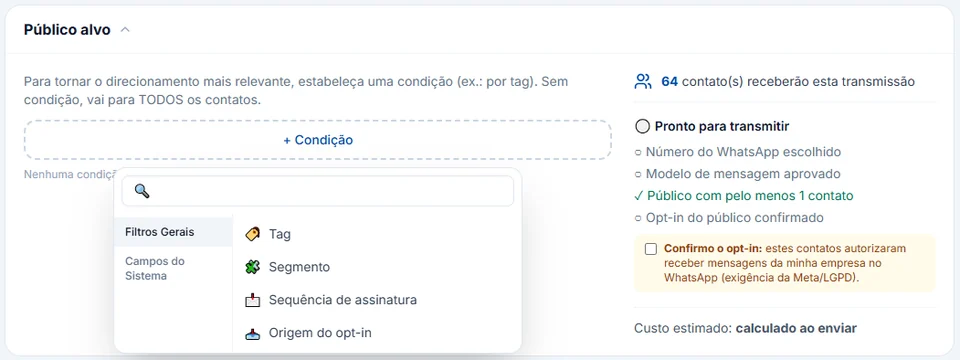
The Target audience takes one inclusion condition; with none, the broadcast goes to every contact in the account except the blocklist. Under + Condition, the General Filters are Tag (is or is not), Segment, Subscription sequence and Opt-in source (Import, Messaged in on WhatsApp or Added manually). The System Fields are Full Name and Phone (contains) and Subscribed (has a confirmed opt-in).
Below it, the low-key + Exclude audience button adds Tag "is not" rows that remove contacts on top of the condition. The audience takes up to 20 rows in total, and the count of who will receive it updates with every change.
- Anyone on the blocklist is never included, under both spellings of Brazil’s ninth mobile digit.
- A half-set condition (no tag picked, a deleted segment) never becomes "everyone": the audience stays empty and the screen says what is missing.
- A number that is another account’s connection of yours is left out: one account never sends to the other.
- A contact who gets the "descadastro" tag goes to the blocklist automatically.
The Ready to broadcast checklist asks for a WhatsApp number selected, an approved template, the template’s buttons connected in the flow (when there are buttons), an audience with at least 1 contact and the I confirm the opt-in box, where you state these contacts agreed to get messages from your business. Without that confirmation, the server refuses to publish.
Timing and pace
Now or on a date, at the pace the number can take
Send now goes out as soon as you confirm. The clock next to it opens Schedule Broadcast, with its own calendar and time picker; the screen notes that the America/Sao_Paulo time zone (Brasília time) applies.
On the confirmation, the Sending pace offers three presets, Slow (6 a minute), Standard (20) and Fast (60), plus Custom, where you say how many sends every so many seconds, minutes or hours. The result always lands between 1 and 600 a minute, and the screen shows how long the send takes and when it ends.
Above InvestCRM’s pace sits Meta’s own ceiling. It counts how many different people receive messages from the business outside the customer service window over a moving 24-hour period, it belongs to the whole portfolio (all of its numbers add up together) and it starts at 250 for a new portfolio. The current tier shows under Settings → WhatsApp, in Messaging limits; while it is low, a large audience has to go out spread over several days. Meta may also hold back a marketing message for a specific person to keep engagement healthy (error 131049): its guidance is to wait at least 24 hours before resending. Source: Meta messaging limits · Source: Meta error codes · Portfolio limit and Meta warnings · Number quality and sending limits
Advanced Send: the audience in batches
On the Advanced Send tab, from the Business plan up, you set how many contacts go in each batch and how many days apart the batches go out: 1, 2, 3 or 7. There are 2 to 30 batches, each with an editable date. The audience is frozen when you schedule and split with no one repeated; each batch becomes its own broadcast in the list, named "Name — Lote 1/N", with its own metrics.
On the Start plan, which has 1,000 broadcast messages a month and no batches, the server refuses the whole broadcast when the audience is bigger than what is left for the month, so nothing goes out halfway. For a send in the current month, the screen already warns before publishing.
After the template
Each template button opens a path
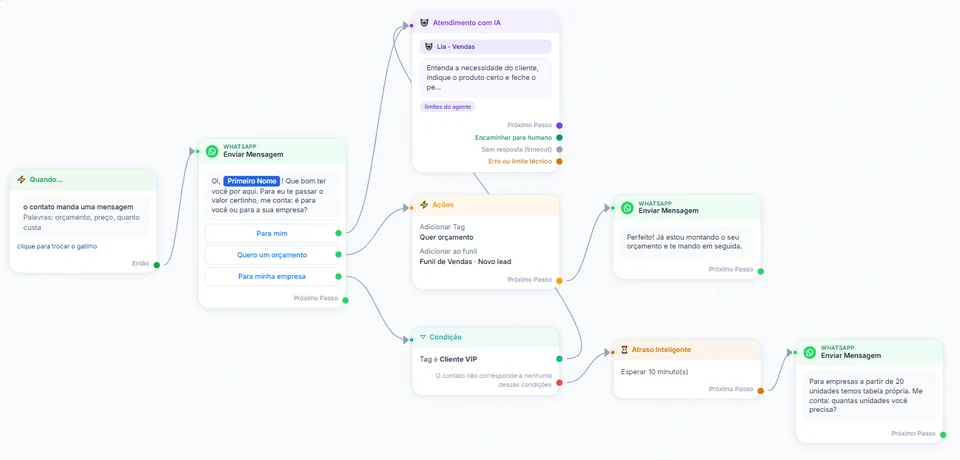
Open the Flow Builder shows the broadcast’s board, with the template as the first block. If the template has buttons, each one must be connected to a next step; otherwise the checklist will not let you send, so no one taps a button that does nothing. The image in this section is from an automation, which starts with a trigger; in a broadcast, the same builder starts with the template.
The steps available are the same as in automations: Send Message, Actions (tag, field, pipeline, sequence, hand off to the team), Condition, Smart Delay, AI assistant, Randomizer, Start automation and Opt-out.
Already have a flow? Broadcast from an automation creates the broadcast with an existing automation’s flow. See how automations work.
While sending
What the system checks while the broadcast goes out
The sending engine works in 15-second rounds and sends, in each one, the share that matches the pace you picked. Before every round it checks again who can receive:
- Anyone who typed SAIR, PARAR, STOP, CANCELAR or DESCADASTRAR after scheduling is skipped, with the reason "asked to opt out before sending".
- Anyone waiting for an agent or talking to someone on the team does not get the broadcast on top of that chat: the send to that person waits.
- If Meta refuses over payment (error 131042), that number’s broadcasts are paused and the account owner is notified. When one runs again, 1 message at a time goes out every 10 minutes instead of the batch: that is how the system learns whether Meta accepts payment again.
- If the connection to Meta expired or was revoked, sending stops instead of marking the whole list as failed.
- If the header media link expired, the system fetches the file from Meta again before sending.
- A send that dropped midway and was not confirmed within 10 minutes is marked as failed, with a note that it was not re-sent to avoid a duplicate.
While the broadcast is going out you can Pause, Resume and Cancel. When resuming with more than 100 messages still queued, the daily volume warning shows again. What to do when Meta declines your card.
Report
The report: what each number means
In the Broadcasts list, History shows each send with Started, Sent, Delivered (%), Read (%) and Clicked (%). When you open a broadcast that already went out, the Metrics panel shows:
| Number | What it counts |
|---|---|
| Sent | Messages that went out, out of how many recipients in total. |
| Delivered | Messages that reached the phone, as a percentage of sent. |
| Read | Messages opened, as a percentage of sent. |
| Replies | People who replied to the broadcast. |
| Failed | Messages that did not go out or that Meta returned with an error. |
| Skipped | People who opted out after scheduling or did not open the 24-hour window for a free-form step. |
Below come Why it failed, with the 10 most recent failures (contact and reason), and Clicks per button (CTR), with clicks, sends and the rate of each button. On the flow board, the number above each block (Sent, Delivered, Clicked) opens the list of contacts behind it.
The report counts what happened to each send; the money side is Meta’s, per delivered message, on the card saved on the WhatsApp account. To estimate the amount before sending, use the cost calculator, which follows the official rate card.
Reasons InvestCRM writes itself
- The contact opted out (SAIR) before sending: it counts as skipped, not failed.
- The number belongs to your own system (another account’s connection) and does not receive sends.
- The template has a media header, but the file could not be found: recreate the template uploading the file through the editor.
- The send dropped midway without confirmation: it was not re-sent, to avoid a duplicate message.
Other reasons carry the error Meta returned. The official API guide explains the most common codes and what to do about each.
A broadcast that went out becomes a published version: to send it again, Duplicate creates an identical draft. Copy to another account takes the flow to another account of yours as a draft; you pick the number, template and audience there.
Cost
One month of broadcasts on Meta’s bill
Example of a store that, in one month, sends 5,000 templates (order and due date notices plus a news campaign) and answers people who write back. InvestCRM does not charge per message: Meta charges the card saved on the WhatsApp account directly, with no markup.
| What for | Billed × price per message | Cost for the month |
|---|---|---|
| News campaign for people who asked for promotions · Marketing | 2,000 × R$ 0.3217 | R$ 643.40 |
| Order and due date notices · Utility | 3,000 × R$ 0.0350 | R$ 105.00 |
| Replies to people who wrote back · Service (support) | 1,500 × R$ 0.0350 (of 2,500 this month) | R$ 52.50 |
| Total | R$ 800.90 |
Estimated monthly total, paid straight to Meta: R$ 800.90. The first 1,000 service messages of each number, every month, are free. If the utility templates in this bill were classified as marketing, the same month would go from R$ 800.90 to R$ 1,661.00. The volumes are an example to show the math, not data from a customer.
Meta's BRL rate card for Brazilian numbers, effective Oct 1, 2026, checked on Oct 9, 2026. See the rate card at Meta · Run your own numbers in the calculator
Since Oct 1, 2026, ordinary replies inside the 24-hour window are charged too, as service, with 1,000 per number at no cost every month. The article How much the official WhatsApp API costs walks through the full rate card.
Rules
Meta’s rules, Brazil’s data law, and what InvestCRM does about each
Opt-in before the first message
The WhatsApp Business policy only lets you contact people who gave you their number and agreed to receive your messages; how you collect that permission is the business’s responsibility. Source: WhatsApp Business Messaging Policy
In InvestCRM: publishing requires ticking I confirm the opt-in, and the audience can be filtered by Subscribed or by Opt-in source. The system does not check how the opt-in was collected: that stays with you.
Whoever asks to leave, leaves
The policy requires honoring requests to stop, made on or off WhatsApp, and Brazil’s data protection law (LGPD) says consent can be withdrawn at any time through a free and easy procedure (art. 8, § 5). Source: WhatsApp Business policy · Source: Law 13,709/2018
In InvestCRM: anyone who types just SAIR, PARAR, STOP, CANCELAR or DESCADASTRAR goes to the blocklist. Tapping a button with those words does not count, because the button is a path in the flow. Requests made by phone or email you add to the blocklist yourself, from the Contacts screen.
Conversations start with an approved template
Outside the 24-hour window, which opens and resets with each message from the person, a business may only write with an approved template. Source: WhatsApp Business policy
In InvestCRM: the first block of a broadcast is always the template; free-form steps after it only go to people who replied.
Blocks and reports cut your reach
Meta may limit how many messages a business sends based on blocks and reports from recipients. Source: WhatsApp Business policy
In InvestCRM: the warning for a broadcast above 100 a day and removing the blocklist on every send help, but no system can promise a number will never be limited. The broadcast best practices guide covers what matters most.
Sensitive data stays out of the chat
The policy forbids asking for or sharing full card numbers, bank account numbers or ID document numbers. Source: WhatsApp Business policy
In InvestCRM: the template text is yours and the system neither reads nor blocks it. Use contact fields only for what the message needs.
Plans
Broadcasts on each plan
The Grátis (free) plan has no broadcasts. Start sends up to 1,000 broadcast messages a month, with scheduling and a pace of up to 600 a minute. Business and Enterprise have no monthly cap on broadcast messages in InvestCRM (Meta’s 24-hour ceiling still applies) and unlock Advanced Send in batches; the sample bill above, with 5,000 templates in a month, already calls for Business.
On the team, building and sending broadcasts belongs to the Editor, the Administrator and the Owner; Collaborators and Viewers can only follow along.
| Feature | Grátis | Start | Business | Enterprise |
|---|---|---|---|---|
| Price per month | R$ 0 | R$ 147 | R$ 297 | R$ 597 |
| Broadcast messages per month | Not included | 1,000 | Unlimited | Unlimited |
| Broadcast sending pace | Not included | Up to 600 a minute | Up to 600 a minute | Up to 600 a minute |
| Schedule a broadcast by date and time | Not included | Included | Included | Included |
| Batch sending (Envio Avançado) | Not included | Not included | Included | Included |
| Contacts included | 100 | 1,000 | 5,000 | Unlimited |
| People on the account | Just you | You plus 1 | You plus 3 | You plus 15 |
Keep reading
To set up your first broadcast
- Support automation on WhatsApp
- InvestCRM integrations and API
- AI support for people who reply
- CRM and sales pipeline
- Meta and Google conversions
- Pricing and plans
- Ready-made message templates
- WhatsApp broadcast best practices
- Official WhatsApp API guide
- How much the official WhatsApp API costs
- Meta cost calculator
- InvestCRM home page
Start free on InvestCRM
The Free plan has no time limit and needs no card. Connect your number through the Meta window and try the system.